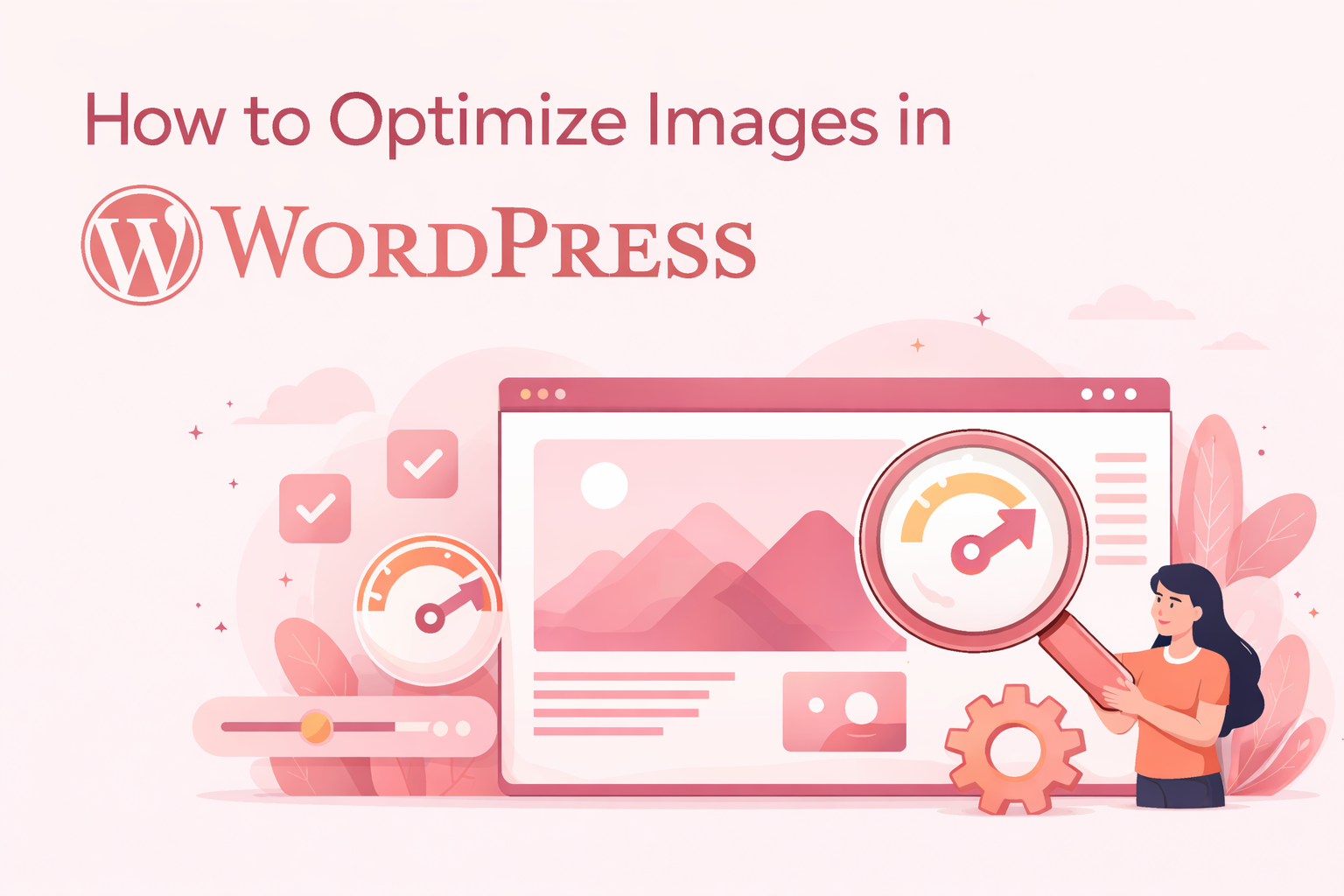
mages play a crucial role in making a WordPress website visually appealing, but if they’re not optimized properly, they can significantly slow down your site. Large image files increase page load time, which can negatively impact both user experience and search engine rankings. In today’s fast-paced digital environment, even a few extra seconds of loading time can lead to higher bounce rates and lost traffic.
Optimizing images ensures your website loads faster, performs better on search engines, and delivers a smoother experience to visitors. By applying simple optimization techniques, you can reduce file sizes without compromising quality, improve Core Web Vitals, and ultimately boost your site’s overall performance.
Why Image Optimization Matters in WordPress
Image optimization plays a key role in improving your website’s speed and performance. Search engines like Google use page speed as a ranking factor, and large, unoptimized images can slow your site down significantly, affecting both rankings and user experience.
Optimized images load faster, reduce bandwidth usage, and keep visitors engaged, especially on mobile devices. This ultimately leads to better SEO performance and a smoother browsing experience.
Preparing Images Before Upload
Optimizing images should start before you upload them to your WordPress site. Uploading large, high-resolution images straight from your camera or design tools can slow down your website and affect performance. Preparing images in advance helps reduce file size without sacrificing quality.
This includes choosing the right format and resizing images to match your website’s layout. By doing this beforehand, you ensure faster loading times and avoid unnecessary processing on your server.
Image Optimization Techniques You Should Use
1. Choose the Right Image Format
Selecting the correct format helps balance quality and file size. JPEG works best for photos, PNG is ideal for graphics with transparency, and WebP offers better compression with high quality.
2. Resize Images to Fit Your Theme
Always match image dimensions to your website layout. Uploading oversized images increases load time unnecessarily.
3. Compress Images Without Losing Quality
Compression reduces file size while maintaining visual quality, which is essential for faster page loading.
4. Use SEO-Friendly File Names
Name your images with relevant keywords instead of generic names like “IMG1234.jpg” to improve SEO.
5. Add Proper Alt Text
Alt text helps search engines understand your images and improves accessibility. Keep it descriptive and concise.
6. Enable Lazy Loading
Lazy loading ensures images load only when they appear on the user’s screen, improving initial page speed.
7. Convert Images to WebP Format
WebP images are smaller in size compared to JPEG and PNG, helping your site load faster without losing quality.
8. Use a Content Delivery Network (CDN)
A CDN delivers images from servers closest to the user’s location, reducing load time and improving global website performance.
Best WordPress Plugins for Image Optimization
Using image optimization plugins can automate compression, resizing, and format conversion, saving time while improving website performance. Popular plugins like Smush, ShortPixel, and Imagify help you compress images, enable lazy loading, and convert images to modern formats like WebP.
Most of these plugins also offer bulk optimization, meaning you can optimize your existing media library with just a few clicks. Choosing the right plugin depends on your site size, traffic, and performance needs.
Common Image Optimization Mistakes to Avoid
1. Uploading Large Images Directly
Uploading high-resolution images without resizing increases page load time and slows down your entire website unnecessarily.
2. Ignoring Image Compression
Skipping compression leads to heavy image files that negatively affect performance and Core Web Vitals.
3. Not Using Alt Text
Missing or irrelevant alt text reduces SEO value and hurts accessibility for users and search engines.
4. Using the Wrong File Format
Using PNG or JPEG incorrectly instead of WebP or optimized formats can result in larger file sizes and slower loading speeds.
5. Over-Compressing Images
Excessive compression can degrade image quality, making your site look unprofessional while still not improving performance effectively.
Quick Image Optimization Checklist
- Resize images before uploading to match your theme dimensions
- Compress images to reduce file size without losing quality
- Use the correct format (JPEG, PNG, or WebP depending on use case)
- Add descriptive, keyword-based file names
- Write clear and relevant alt text for every image
- Enable lazy loading to improve initial page speed
- Use a CDN to deliver images faster globally
- Optimize existing images in your WordPress media library
Conclusion
Optimizing images is one of the most effective ways to improve your WordPress website’s speed, SEO performance, and overall user experience. By consistently applying the right formats, compression techniques, lazy loading, and proper SEO practices, you can significantly reduce load times and enhance site efficiency.
For businesses looking for expert support, IPiTechno offers professional WordPress services, including performance optimization, image handling, and complete website management solutions. Their expertise helps ensure your website runs smoothly, loads faster, and delivers the best possible experience to your visitors.



Comments are closed